Text to Animation: Turn a Script into a Cartoon
To create an animated video from text, turn your idea into clear scenes. For each one, explain who we see, what happens and what we hear. This makes the script easier to carry into storyboards, voiceover and animation.
What does text to animation mean?
Text can define a story, a still frame, movement or a character’s speech. These are different jobs. “A fox finds a star” describes an event, but does not tell us where the fox stands, what the star looks like or what changes on screen.
Work in stages: idea → script → frames → voices → animation → editing. In Pipa, the story and scenes belong to one project. Review each stage: a coherent script alone does not guarantee a coherent cartoon.
1. Choose one event for a short story
Start with one character, one goal and a small obstacle. A fox wants to return a fallen star to the sky but cannot reach high enough. The resolution: the fox finds a tall rock and helps the star take off.
Write three sentences: setup, attempt and outcome. If you also introduce a chase, a journey and a new villain, save some events for another episode. Give each action room on screen.
2. Split the text into scenes
Each scene needs a clear visual focus. Begin with three: the character notices a problem, tries to solve it and reaches an outcome. A new location, a jump in time or a major change of action may need a separate scene.
Do not squeeze a whole paragraph into one shot. Walking over, picking something up, running and flying are several actions. Refine the timing after recording the dialogue so viewers can hear the words and notice the reaction.
3. Separate the frame from the movement
The frame description explains what is visible: character, setting, objects, light and shot size. The animation instruction explains what changes: a gesture, step, glance or camera movement. Check the composition before adding motion.
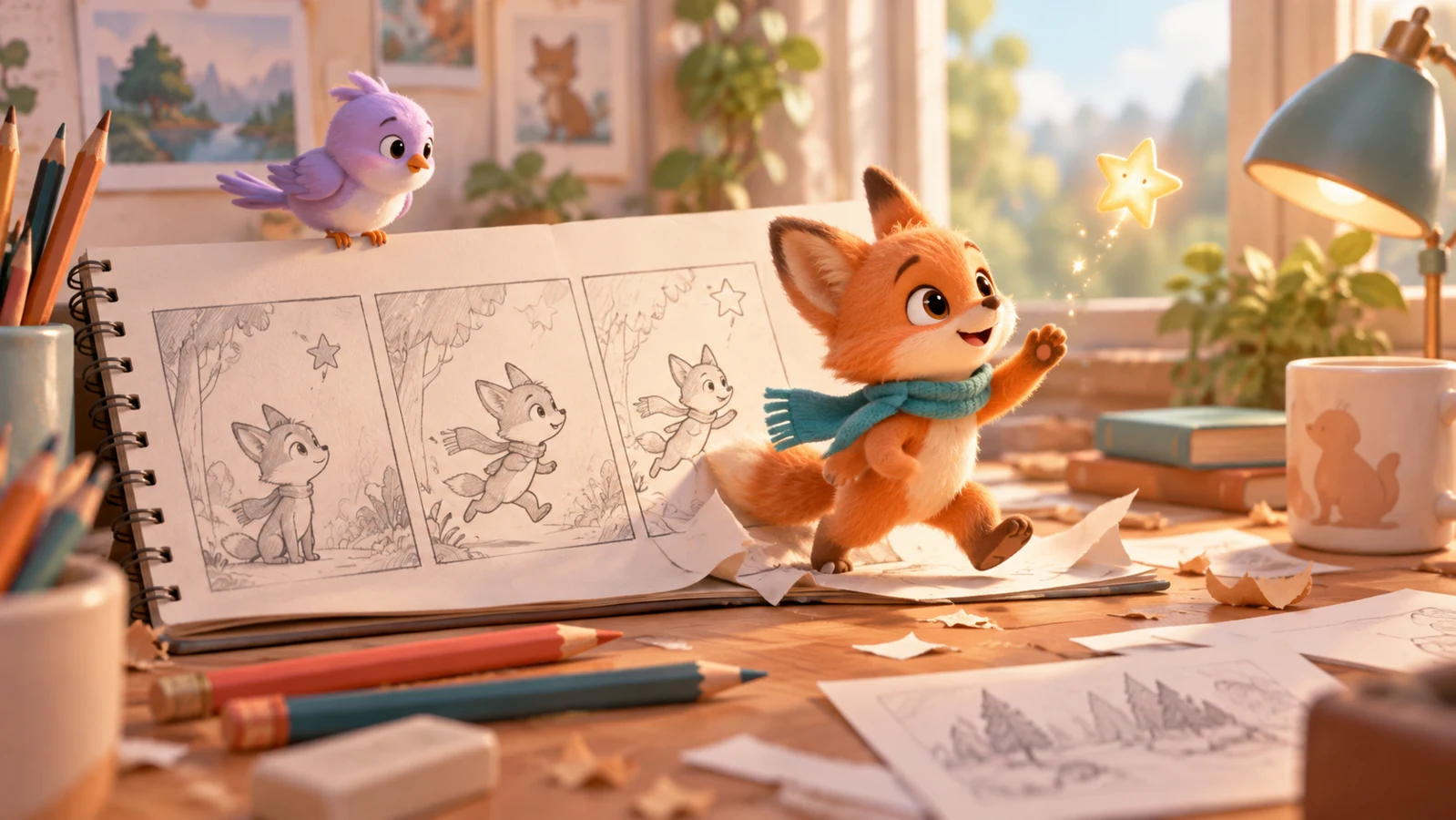
Replace “a beautiful magical scene” with visible details: “An orange fox wearing a blue scarf stands on the left of a forest clearing. A small golden star lies on the grass to the right. Medium shot, soft evening light.”
A sample scene brief
This is a useful structure, rather than a guarantee of an exact first result. If the scarf changes, an object appears or the gesture is missing, refine that part of the description and review the next version.
4. Write dialogue for the ear
Read the lines aloud. A short sentence is often easier to follow than several lines of explanation. Name the speaker for every line, especially when several characters share a scene.
Avoid narrating everything we can already see. If a paw is reaching out, “I am reaching out my paw” adds little. Let the words reveal intention or emotion: “Don’t worry, I’m here.” Leave a little space for a reaction.
5. Review a rough cut
Watch the scenes in sequence with their voices. Does the next location make sense? Is the important object still there? Does a line start before the previous action finishes? Fix these problems while the edit is still a draft.
If a scene is too busy, reduce it to one action. If the story needs the author to explain it, add a connecting shot or change a line. Then move to the final assembly.
Before you generate
- The story has a goal, an obstacle and an outcome.
- Each scene has one main action.
- Character appearance stays consistent in every frame.
- Frame descriptions and movement instructions are separate.
- Every line names its speaker.
- The timing allows for speech and a visible reaction.
Common questions
Can I use a whole story? Use it as source material, then extract scenes and dialogue. Translate a character’s thoughts into visible actions, expressions or speech.
Do I need a long prompt? Precision matters more. Keep details that affect the shot and remove contradictions. If the camera is told to stay still and orbit the character, choose one.
How do I start in Pipa? Create a project, enter a short idea and prepare the script. Review the scenes, attach your characters and work on the storyboard. A small episode lets you follow the entire process to a finished video.